Adventure GUI
Universal Script 📌
Description
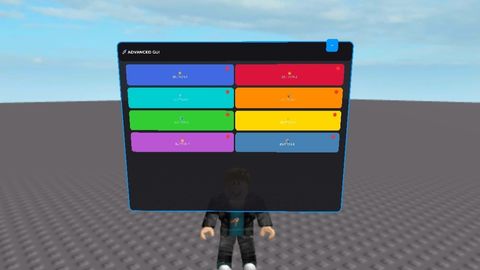
🌟 Overview This is a unique GUI system for Roblox that uses BillboardGui technology instead of traditional ScreenGui. It provides a highly customizable, movable, and collapsible interface that always stays visible in the 3D world. 🛠️ Installation 1. Copy the entire script 2. Paste into a Script object in StarterPlayerScripts 3. The GUI will automatically appear when you spawn ⚙️ Customization Guide 🎨 Changing Colors ```lua -- Main background color mainFrame.BackgroundColor3 = Color3.fromRGB(25, 25, 30) -- Header color header.BackgroundColor3 = Color3.fromRGB(20, 20, 25) -- Button colors (example) createCustomButton("⭐", "MY BUTTON", Color3.fromRGB(255, 0, 0)) -- Red button ``` 📏 Changing Size ```lua -- GUI Part size (width, height, depth) guiPart.Size = Vector3.new(10, 8, 0.1) -- Larger GUI -- Button grid layout gridLayout.CellSize = UDim2.new(0.45, 0, 0, 80) -- Larger buttons ``` 🔧 Adding Custom Functions ```lua -- Example: Add custom functionality to button 1 buttons[1].MouseButton1Click:Connect(function() -- Your custom code here print("Custom function executed!") -- Example: Change player speed game.Players.LocalPlayer.Character.Humanoid.WalkSpeed = 50 -- Example: Create a part local part = Instance.new("Part") part.Position = game.Players.LocalPlayer.Character.HumanoidRootPart.Position part.Parent = workspace end) ``` 📱 Mobile Optimization The GUI is automatically optimized for mobile devices with: · Large touch targets · Draggable interface · Clear visual feedback · Responsive design 🎯 Positioning Options ```lua -- Change follow offset local offset = CFrame.new(0, 5, -6) -- Higher and further back -- Static position (disable follow system) -- Remove the Heartbeat connection and set position manually advancedGUI.Position = Vector3.new(0, 10, 0) advancedGUI.Anchored = true ``` 🔧 Advanced Features Button States Each button has a status indicator that toggles between red (off) and green (on). You can customize this behavior: ```lua -- Custom status colors statusLight.BackgroundColor3 = isActive and Color3.fromRGB(0, 255, 0) or Color3.fromRGB(255, 0, 0) -- Add more states statusLight.BackgroundColor3 = Color3.fromRGB(255, 165, 0) -- Orange for intermediate state ``` Dynamic Content ```lua -- Add images to buttons local buttonIcon = Instance.new("ImageLabel") buttonIcon.Image = "rbxassetid://YOUR_IMAGE_ID" buttonIcon.Parent = button -- Create different button layouts gridLayout.CellPadding = UDim2.new(0, 10, 0, 15) -- More spacing ``` 🚀 Performance Tips · The GUI uses minimal resources · Only updates position when player moves · Collapsible to reduce visual clutter · Automatic cleanup when player respawns 🎨 Theme Customization Create different themes by modifying these color values: Dark Theme (Default): ```lua mainFrame.BackgroundColor3 = Color3.fromRGB(25, 25, 30) header.BackgroundColor3 = Color3.fromRGB(20, 20, 25) ``` Light Theme: ```lua mainFrame.BackgroundColor3 = Color3.fromRGB(240, 240, 240) header.BackgroundColor3 = Color3.fromRGB(220, 220, 220) title.TextColor3 = Color3.fromRGB(0, 0, 0) ``` Blue Theme: ```lua mainFrame.BackgroundColor3 = Color3.fromRGB(30, 40, 70) header.BackgroundColor3 = Color3.fromRGB(20, 30, 60) ``` 📝 Usage Examples Game Controls: ```lua -- Teleport button buttons[1].MouseButton1Click:Connect(function() game.Players.LocalPlayer.Character.HumanoidRootPart.Position = Vector3.new(0, 100, 0) end) ``` Admin Command