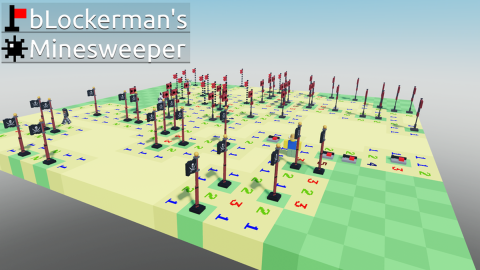

Description
Nearby Minesweeper Helper English User Guide 1. Overview This tool helps analyze Minesweeper cells near the player. It reads visible number clues, checks nearby unopened cells, and shows simple markers to help the user understand which cells are safer and which cells may contain mines. This version also includes a floating button for mobile users, making it easier to show or hide the interface without using a keyboard. 2. Main Features Nearby scanning The tool checks cells close to the player. The scan distance can be adjusted from the interface. A smaller scan distance improves performance. A larger scan distance shows more information but may be slower. Visual markers The tool displays markers above unopened cells. A green check mark means the cell is considered safe. A red cross means the cell is considered a mine. A percentage marker means the cell has an estimated chance of being safe. Example: 80% means the cell is estimated to have an 80% chance of being safe. Mobile floating button The floating button can be used to show or hide the main interface. It is useful for mobile players because they may not have keyboard controls. The button can also be dragged to another position on the screen. Status indicator The floating button includes a small status indicator. Blue means the helper is active. Green means automatic refresh is running. Gray means inactive or disabled. 3. Controls On computer Right Control shows or hides the main interface. F turns automatic flagging on or off. On mobile Tap the floating button to show or hide the interface. Drag the floating button to move it. 4. Interface Buttons Analyze Nearby Manually scans nearby cells and updates the markers. Use this when the board changes, markers are missing, or automatic refresh is turned off. Auto Turns automatic refreshing on or off. When enabled, the tool updates the markers when nearby cells change or when the player moves to a new area. Flag Turns automatic flagging on or off. This only attempts to flag cells that are detected as certain mines. Use this only in private, educational, or allowed testing environments. Flags Controls whether placed flags are used in the calculation. Keep this enabled only if the flags are correct. If the placed flags are wrong, the result may also be wrong. Frontier Shows only cells connected to visible number clues. This mode is cleaner and usually easier to understand. All Safe Shows more estimated safe cells, including cells outside the main clue area. This mode gives more information but may create more visual clutter. Threshold Changes the minimum safety percentage required before a marker is shown. A higher threshold shows fewer but safer suggestions. A lower threshold shows more suggestions, including riskier ones. Clear Removes all current markers from the board. Use this if old markers remain or the board has changed a lot. Radius Changes how far the tool scans around the player. A smaller radius is faster and better for mobile devices. A larger radius checks more cells but may reduce performance. Mines Lets the user set the estimated total number of mines. This helps the tool estimate probabilities in areas that are not directly connected to visible clues. Flag Range Controls how far automatic flagging is allowed to work. A lower range keeps automatic flagging close to the player. A higher range allows it to work farther away. 5. Marker Meanings Green check mark

![[🍀2x Luck🍀] Sailor Piece](https://tr.rbxcdn.com/180DAY-8fc0d588b4b48b535e029cf807e9bc3a/480/270/Image/Png/noFilter)
![[BLACK DEATH] Jujutsu Shenanigans](/images/script/9391468976-1780855195957.png)
![[🌊] Catch And Tame!](https://tr.rbxcdn.com/180DAY-0d68f08d3dc380ca03a0159c40640463/480/270/Image/Png/noFilter)