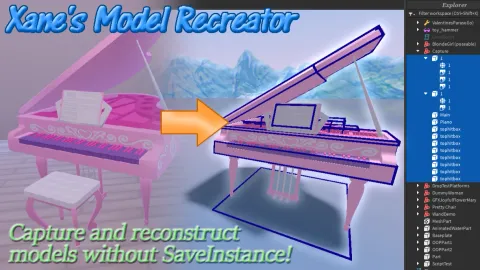
Xanes Model Recreator
Universal Script 📌
Does it work?
No reports yetNo reports yet. Tried it? Be the first to say.
Description
After Hyperion was introduced and Synapse X stopped working, there wasn't a good way to save simpler models (tools, accessories, and furniture). Since I wanted to continue saving things as RBXM and OBJ files through Studio, I wrote this script for my personal use. I think it could be useful to others, so it's now public! This script converts most instance classes relevant to model/asset rips into a series of JSON files, which can be used to recreate the original instances when their contents are pasted into the companion Roblox Studio plugin! PLEASE DOWNLOAD THAT HERE: https://www.dropbox.com/scl/fi/xrv2mx9gpjlvks3vnisz4/XMDLRecreator_ImportTool.rbxm?rlkey=ltv22ona3z1r1uxz946zw9mdy&dl=0 This script has three _G settings, which I recommend defining before executing the script. You may get an error if you don't make _G.PageLength and _G.AntiLagInterval, which are number variables, and _G.SkipPreSaveVerify, a boolean value. See the description at the top of the script (linked in the LoadString script here) for details about what they are. STEPS (IN-GAME) 1. Execute this script, and a button will appear at the top of the screen. Tap on it to open the capturing GUI! 2. Tap on a container (workspace, ReplicatedStorage, etc.) at the top of the window, then wait until all instances have been indexed. 3. A neat, indented list of the instances within that container will be shown. Tap on an instance's icon to select it. (To look at the object, tap the camera button, and right-click/long tap it to return to your character.). Don't select children! Just choose models, as their children will be automatically exported with them. 4 (optional). Feel free to tap on another container and select instances from any of them; The script will remember everything you've selected until you close the GUI using the top button. 5. Enter a name for your export in the textbox, then tap the "save" button to its right to start capturing any instances that still exist. STEPS (PLUGIN) 1. Install the companion plugin by placing the .rbxm file in your plugins folder. (Go to plugins > Plugin folder in Studio to see it.). 2. Close your current place then re-open it; An undocked window will appear. 3. Transfer your exported JSON files from your executor's "workspace" folder to a folder on your PC. 4. Open all of the JSON files named after the export, then copy and paste their contents into the plugin's text box when it requests them. (It asks for _header then each _piece# file.) 5. Change your import settings as needed, then click the "Start" button at the top. 6. If nothing went wrong, your exported model (and other instances) should be placed in a Model within the container that you captured it from. (For now, all instances from Players are put in StarterGui.) 7. Repeat all of these steps to capture and import another model! Q&A Q: Why are there holes (or missing terrain) in my geometry? A: Unfortunately, I don't know how to read and write terrain, so it isn't saved yet. Most holes are caused by unions, which can't be separated, so I can't save the steps to reconstruct them with the plugin. (It's Roblox's limited API!) Q: A decal/texture is missing! A: Usually, decals and textures are included in exports, but are usually always applied to the "front" surface for some reason. Select the affected part and manually fix the incorrectly-placed images yourself. Q: I saved instances in Lighting, but the effects haven't activated! A: All lighting instances are put in a Model by default for organization. Open Lighting and press CTRL+U while selecting the model to move its contents out into the container itself, which should cause things to look correct. Q: The script stopped working while "trying to get a reference" or saving instances. A: Oh no, my iffy scripting has failed you! Please press F9 or type "/console" in chat, scroll to the bottom, and leave a comment with the error message and the game/place you were trying to save instances from and I'll look into it (if my brain is alive by then).
-- XANE'S MODEL RECREATOR V3
-- This script's code is hosted on Pastebin, but it isn't obfuscated; Feel free to modify it and release your own versions, but make sure to give me credit; This cool, effective script took a lot of work to make!
_G.PageLength = 32
_G.AntiLagInterval = 30
_G.SkipPreSaveVerify = false
loadstring(game:HttpGet('https://pastebin.com/raw/N9FjkyJf'))()




Unfortunately, Roblox and executors don't include a way to separate unions during gameplay, so I can't store any info about them to rebuild them in Studio. I wish it was possible. As for the Roblox Studio plugin, it's linked in this script's description in the second paragraph (the Dropbox link). In Roblox Studio, go to your Plugins tab then click the "Open Plugins Folder" button near the top left corner. When you download the RBXM file from Dropbox, place it in the folder that Studio opens. This will open a new panel the next time you open a place or RBXL file in Roblox Studio, where you can paste the contents of the .json files that my script saves to your executor's workspace folder.
It's HERE! Scriptblox is weird and won't let me rename this script, so I went ahead and replaced it with the new, amazing version 3, which is better than the previous version in every way (accuracy, instance variety, and portability because it uses JSON files). Sadly, doing this probably means that no one will see or use my masterpiece, but if you're reading this, please give it a try.
Good news! It isn't perfect yet, but the new version of this script is close enough, so I think I'm going to submit version 3 as a second script. Yes, I've been working on Xane's Model Recreator a lot lately, and it's definitely going to be worth the hype. Though it can't recreate unions (solid modeling) and terrain, it can literally save entire places worth of models and parts, making us easy to preserve versions of places and things to RBXM and OBJ files.
I have good and bad news! The good news is that I'm working on the "ultimate" version of this script, which will utilize JSON as its serialized data format and a Roblox Studio plugin to import the resulting data. This should allow this script to export way more instances, and yes, a lot of the annoying limitations of the current version will be removed completely when I'm done with this awesome new one. The bad news? Well, since this "script" is part exploit script and part Studio plugin, I won't update the script here until I've finished making that companion plugin, which will take the exported JSON data and convert it back into instances, mostly automatically. If you're reading this, look forward to the new version; If everything works out, this'll be almost like the second coming of SaveInstance(), or at least, the second-best thing.
This script was just updated with a new, improved UI, which can be hidden like Dex! Also, the save button (which looks like something out of Royale High) keeps you from saving until you enter a valid instance reference and filename. Additionally, I'm now using pcall() to catch errors when saving models, which are shown at the bottom of the GUI. This script is still far from perfection, as it still isn't robust enough to understand GetService() FindFirstChildOfClass(), and other methods, and doesn't save nested models or anything complex, but I think today's changes have improved its UX. Let me know what you think about the latest release!
Someone can resume what this does?
and also. am i suppose to put a folder in the plugins folder?